Help and getting started
The questions owners ask while setting up Belcome, answered in one place.
FAQ
Try reminders, deposits or time off
No answers found. Try a different word, or use Help to contact us.
How do I offer a class with several places?
Open Services and edit the service. Set Places per session from 2 to 100; 1 keeps it private. Under Class times, choose Add time for each weekly day and time, then Save. Without class times, online bookings can start at any available time. Clients book the same time with the same professional until the class fills. In the calendar, open a booking to see the group when it has more than one participant. Use Mark everyone arrived only after checking who is there.
How do I start?
Create your account and pick one of three paths: import clients and services from Vagaro, Square or Fresha, start from the service menu for your type of business, or start from scratch. The checklist in Settings shows what is left before you publish.
How long does it take to go live?
Our goal is under 15 minutes from sign-up to a published booking page for a business with its menu ready. Importing a long client list takes a little longer, and you see a preview before anything is saved.
What is my booking page address?
belcome.app followed by your business name, for example belcome.app/cape-aesthetics. You choose it when you publish, and you can put a Book now button on your own website.
Do my clients need an app?
No. They book on your page from any phone or computer, and they manage the appointment from the link in their confirmation.
Do returning clients type their details again?
No. On the same phone or computer, the booking page remembers the name, e-mail and phone from the last booking and shows one line, Booking as, with the client's name. They check it and confirm, or tap Edit details to change it. On a new device they tap Send me a code, and the code sent to the e-mail or phone you have on file fills the details in.
How do reminders work?
Every booking gets an email confirmation and a reminder the day before. Clients who opt in at booking also get text messages. Texts never name the service.
Will my clients' text consent come with an import?
No. Text consent does not transfer between systems, so imported clients start without texts and opt in the next time they book. Email reminders work from day one.
How do I move my clients and services over from Fresha, Vagaro or Square?
Two ways, both free, and both start with Import from Vagaro, Square or Fresha (on the Clients screen or in Settings). For services, team and hours, use the Free migration card at the top: paste the link of the booking page you use today and tap Request free migration. We set it up and e-mail you when your account is ready. For clients, export the list from your old app, pick Clients or Services below, and tap Choose CSV or Excel file. You see a Preview with what is new, updated or skipped, and nothing is saved until you tap Import. Using another app, like Booksy, GlossGenius or Mangomint? Export the list as CSV and the common columns (name, email, phone, birthday, notes) are already matched for you; check them in the Preview. Text consent does not travel with the file, so your clients opt in the next time they book.
Why didn't my client get the text reminder?
Text reminders only go to clients who agreed to receive them. Clients who book on your page tick the box while booking. For clients you book in the app, tick The client agrees to receive booking text messages; in countries where reminders go by WhatsApp, the box reads The client agrees to receive booking messages on WhatsApp. It shows under New client when you book, under the chosen client when they have not agreed yet, and in Edit client. In the agenda, the sheet of a visit whose client has not agreed says No automatic reminders: ask the client, then tap Client agreed. Only tick it after asking the client. Without it, the client gets the email only, if they have one on file, so type it in the Email field of New client.
I run a med spa. What do I need?
Accept the Business Associate Agreement in Settings before importing clients or publishing. It takes a minute and records who signed and when.
Can I test before going live?
Yes. Book a test visit from the preview of your page. Test bookings are marked as tests and do not send reminders.
How do I add my team?
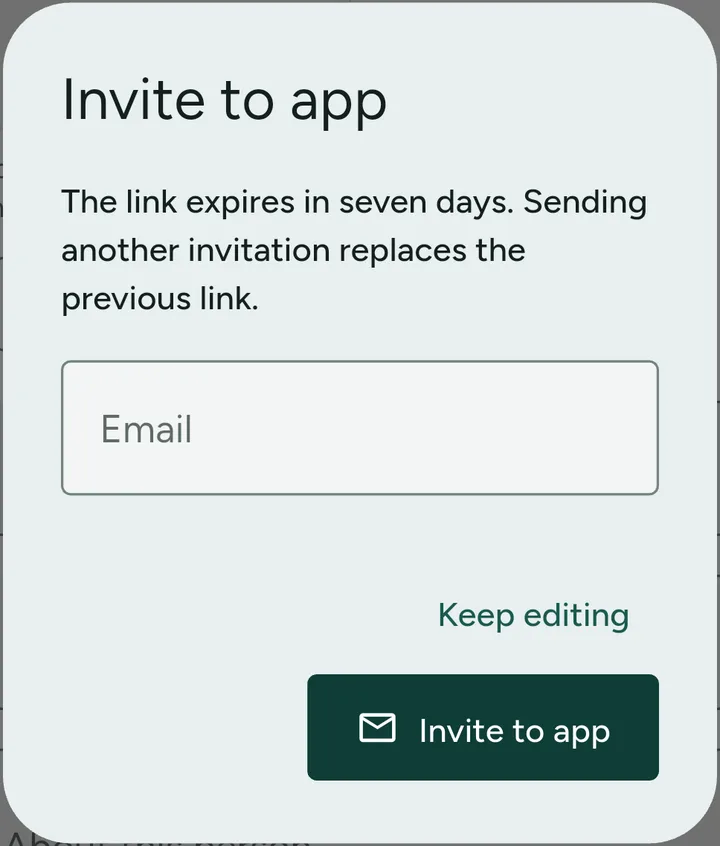
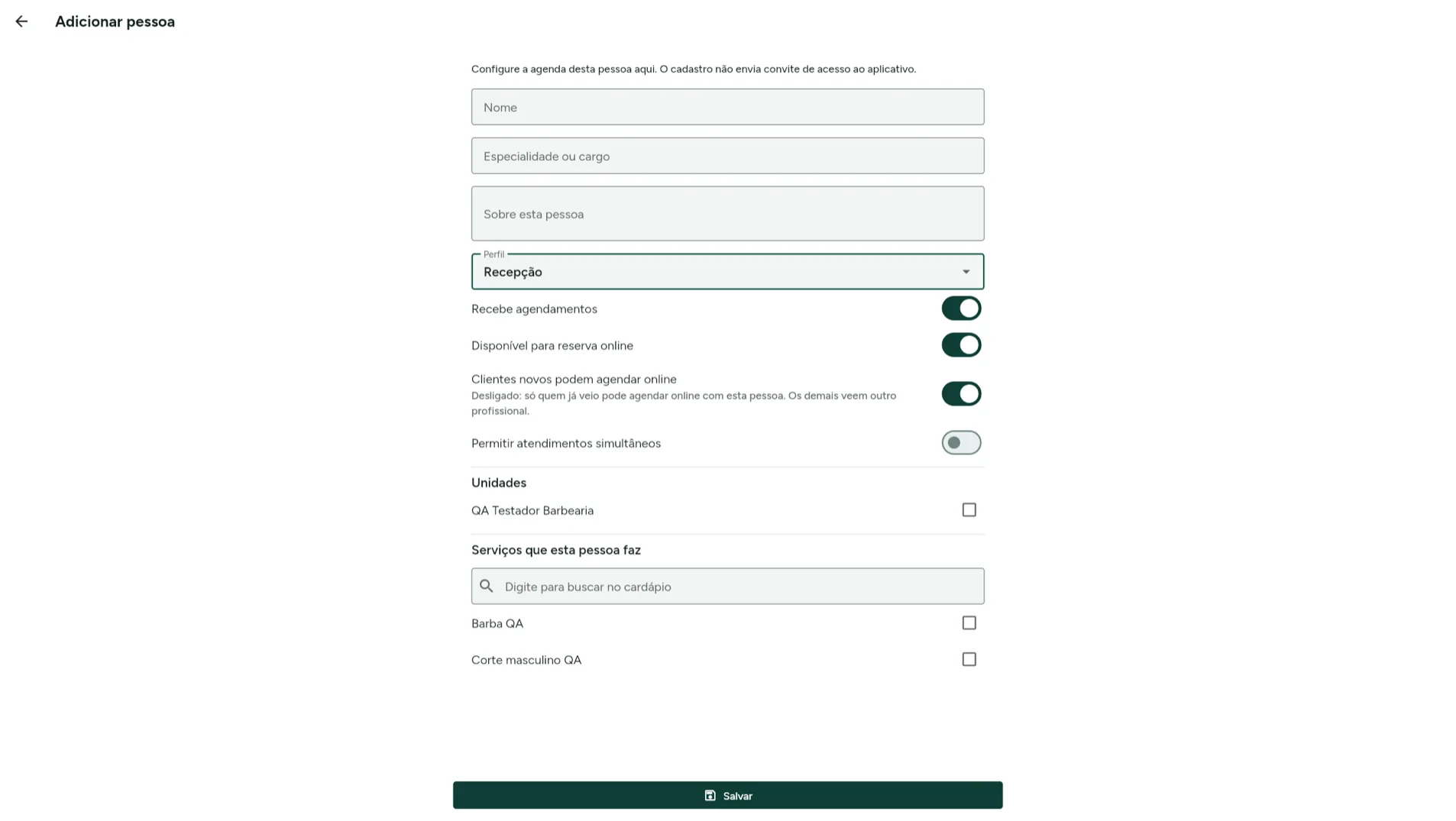
In Team, tap Add person, fill in the name, choose the role and tap Save. Adding someone sets up their calendar but does not send an app invitation. To invite them, open the person from the Team list, tap the envelope icon at the top, type their email and tap Invite to app. The link expires in seven days, and a new invitation replaces the previous link. Only the owner and managers can invite. Each person sets their own password from the invitation.
How do I give front desk access to my receptionist or secretary?
In Team, tap Add person, fill in the name, choose the Front desk role and tap Save. Then open the person in the list, tap the envelope icon at the top, enter their email and tap Invite to app: the link lasts seven days, and only the owner and managers can invite. With Front desk they see every calendar, book and reschedule appointments, add and edit clients, and take checkout at the desk (Checkout / Charge). They cannot change Services, Team, Booking policies, the booking page, SMS, billing, refunds or the card reader. If they also take clients, use Professional; if they need to change services, policies or invite people, use Manager. Front desk staff who do not take bookings do not count toward the monthly team charge.
How do I set each person's working hours?
In Team, tap the clock icon next to the person's name (Working hours). Pick the day of the week, type the start and end time on the 24-hour clock (for example 09:00 and 17:00) and tap Save. A shop open Monday to Saturday sets one day, then taps Repeat on the other days to copy it. Use Add working period for a split shift, such as a lunch break. Until a person has working hours at a location, the booking page offers no times with them. For one-off closures use the calendar icon with an X instead (Time off & extra hours).
Which languages does Belcome speak?
English, Spanish, Portuguese, French, German and Italian, in the app, the booking page and the messages. Each client gets messages in the language they booked in.
Is there an app for my team?
Yes. Belcome Pro is on Google Play for Android phones and tablets. On iPhone, iPad or a computer, open pro.belcome.app in the browser with the same account, or download the iPhone and iPad app from the App Store.
How do clients pay deposits and card payments?
Open Payments in the app and tap Connect Stripe. Clients then pay deposits and visits online by card, Apple Pay or Google Pay, and you charge at the desk with a card reader. At checkout you can also pick Send a payment link: the client gets an e-mail with a Pay button and pays the balance from their phone. Stripe sends the money to your bank account on its regular payout schedule. New card connections are open to businesses in the United States.
How much deposit do I take on online bookings?
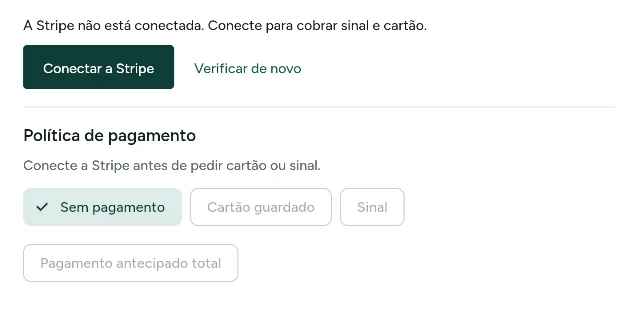
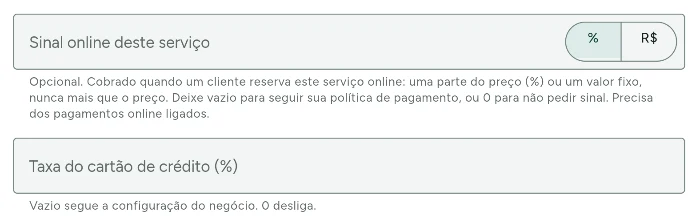
The deposit works once Stripe is connected, under Payments and deposits. Under Payment policy pick Deposit, choose Percent of the visit or Fixed amount, fill Value and tap Save: that is the default deposit for every service. To take a different deposit on one service (40% on makeup, for example), open Services, tap the service, scroll to Online deposit for this service, pick the % (share of the price) or $ (fixed amount) option, type the value and tap Save. Leave the field empty for the service to follow the business payment policy, or type 0 to ask no deposit on it; the deposit never goes above the service price. On the booking page the client pays the deposit when booking and the amount comes off the visit. Without Stripe connected the app warns Connect Stripe before asking for a card or a deposit. The screenshots below show the app in Portuguese: the policy before Stripe is connected and the per-service deposit field. The fixed-amount button shows your business currency.
How do I charge a no-show fee or a late cancellation fee?
Connect Stripe in Payments first, then open Payment policy there. Pick Card on file, Deposit or Full prepayment, and set the No-show fee and the Late cancellation fee as a percent of the visit or a fixed amount. The booking page shows the client exactly what they agreed to. To spare regulars, turn on Only new clients and recent no-shows pay: a client with a completed visit and no missed visit in the last 12 months books without paying or saving a card. When a client misses, mark the visit as a no-show and Belcome asks whether to charge the fee of your policy, so nothing is charged without your tap.
How do I sell gift cards, packages and memberships?
Connect Stripe in Payments first. Your booking page then links a shop where clients buy gift cards online, and every package or membership you add in Settings, under Packages & memberships, sells there too. A membership can start with up to 90 free days before the first charge. The gift card e-mail lets the client add the card to Apple Wallet, and you can also sell one at the desk from the client's file.
How do I get more clients to my booking page?
In Settings, open Share your booking page. Copy the link for your Instagram bio, your Google Business Profile and the Book now button on Facebook, show the QR code at the desk, or tap Print a sign for a Scan to book poster.
How do I get more Google reviews?
In Settings, open Reviews and tap Turn on reviews. After each completed visit the client gets a thank-you with a link to rate it, and the rating shows on your booking page, where you can reply. Under Google reviews, tap Paste link and paste the review link from your Google Business Profile (Ask for reviews, then Share); Yelp and Facebook links work too. From then on, right after rating the visit, every client is invited to review you on Google as well, whatever the score, as Google's rules ask.
How do I set up a loyalty program and rewards for referrals?
In Settings, under Clients and marketing, open Loyalty points and turn on Clients earn points. Choose how many points a client earns per dollar paid, how many points make a reward and how much the reward is worth. When a client reaches that balance, a reward card is e-mailed automatically and used like a gift card at the desk or online. Tips don't count and refunds take the points back. On the same screen, set a Referral reward: every client gets a personal booking link, and when a new client books through it and completes the first visit, the client who shared it gets a reward card. Set 0 to turn referrals off.
How do I offer a discount for slow hours, last-minute spots or a sale?
In Settings, under Clients and marketing, open Promotions and tap New promotion. Pick a type: Off-peak gives a discount in the days and hours you choose, Last minute discounts bookings that start within the next 1 to 72 hours, First visit is for new clients, Sale discounts every online booking between a first and a last day (a Black Friday, for example), and Code is a code the client types. Choose a percent or an amount, the services and the dates. The booking page shows the discounted price on each time before the client books. Peak time works the other way and adds an extra to busy hours. Discounts apply to online bookings; at the desk you charge the usual price.
Can I travel to my clients' homes and charge a travel fee?
Yes. In Settings, under Booking page, open At-home visits and turn on Travel to clients. Set a service radius in miles or list the ZIP codes you serve, then add a travel fee: a fixed fee, a price per mile, miles included, a minimum, and the amount from which travel is free. You can also set the longest drive you accept. Clients type their address when they book, see the travel fee before they confirm, and the drive time is kept free in your calendar before and after the visit.
Can each professional have their own booking link?
Yes. In Settings, open Share your booking page and scroll to A link for each professional. Each link opens your booking page with that person already picked, so it fits their own Instagram bio or texts. Tap a name to copy the link. The section shows once your team has more than one person taking appointments.
Can I collect chair or booth rent?
Yes. In Settings, open Chair rent and set the amount, weekly or monthly, for each person who rents. Each period the renter gets an e-mail with what is due; once you take cards, it has a Pay online button and the period is marked paid by itself. Rent paid in cash or another way you mark by hand.
What happens when my free trial ends?
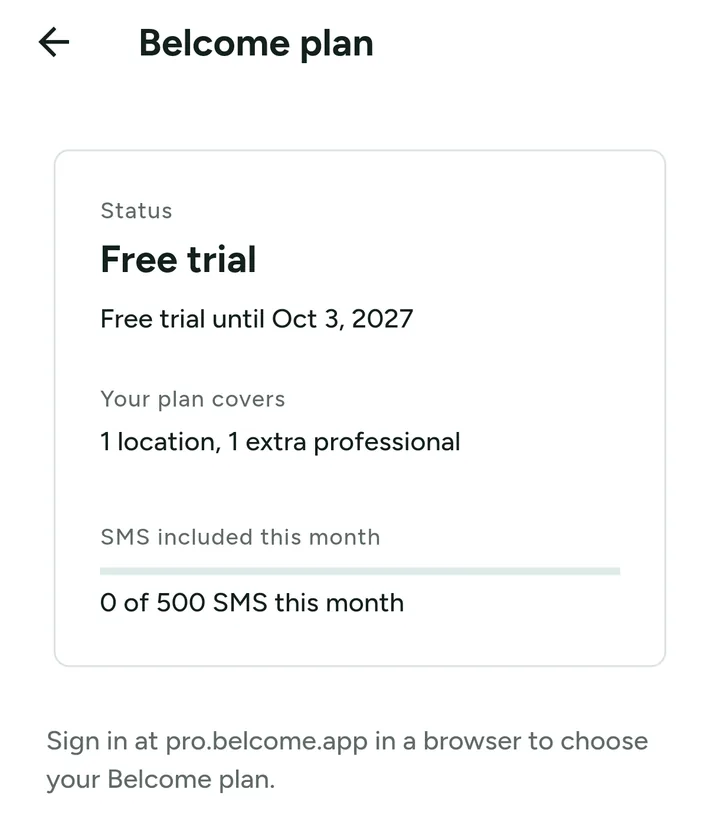
The free trial lasts 14 days and needs no card. Choose a plan any time: sign in at pro.belcome.app in a browser (on a computer or on your phone), go to Settings, under Belcome plan, and tap Subscribe. In the phone app that screen only shows your status and when the trial ends. If the trial ends without one, your page keeps taking bookings for 7 more days; after that, online booking and changes pause until you subscribe, and your clients, calendar and history stay as they are.
How do I cancel my plan?
Cancel in the browser, not in the phone app: sign in at pro.belcome.app with the same account, go to Settings, under Belcome plan, tap Manage billing and cancel. In the phone app that screen only shows your status (free trial or renewal date, and how many text messages you used) and a note to continue in the browser, so it has no Manage billing button. The plan runs to the end of the period you paid for, and Keep my plan undoes the cancellation until then. Nothing is charged after it ends.
How do I reach support?
Write to info@designmastersolutions.com or message us on WhatsApp at +1 (617) 275-3254. A person answers, in English, Spanish or Portuguese. Please do not include health information about your clients.
How do I cap how many clients the salon takes at once?
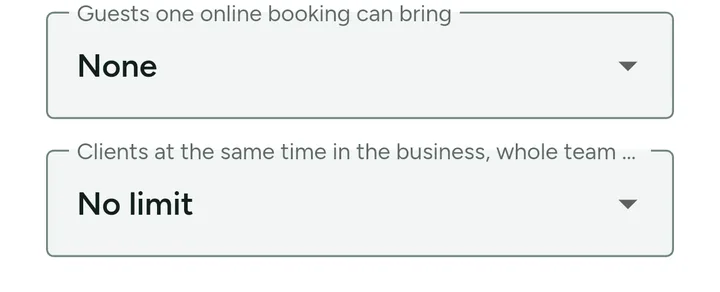
In Settings, under Booking policies, scroll to Clients at the same time in the business, whole team together, tap the field, pick a number from the list (1, 2, 3, 4, 5, 6, 8 or 10) and tap Save at the bottom of the screen. No limit, the default, takes as many bookings as the team's schedules allow. With 3, once 3 clients are already booked for that time slot, the slot closes for everyone, even if a professional is free. Use it for salons with few chairs or rooms that want to avoid overcrowding.
How do I limit how many upcoming bookings each client can have?
In Settings, open Booking policies and scroll to Upcoming bookings per client. Tap the field, choose 1, 2, 3, 5, 10 or 20 and tap Save at the bottom of the screen. The default is 5. It counts what the client already booked on the booking page and what the team books under their name on the Calendar: when they hit the number, the page shows You have reached the limit of future bookings. Contact the business for help. and the Calendar warns The limit for upcoming appointments has been reached. There is no No limit option in this field: the highest value is 20. This is different from Clients at the same time in the business, whole team together, which limits how many people fit in the same hour, not how many bookings each client can hold.
How do I close early on just one day?
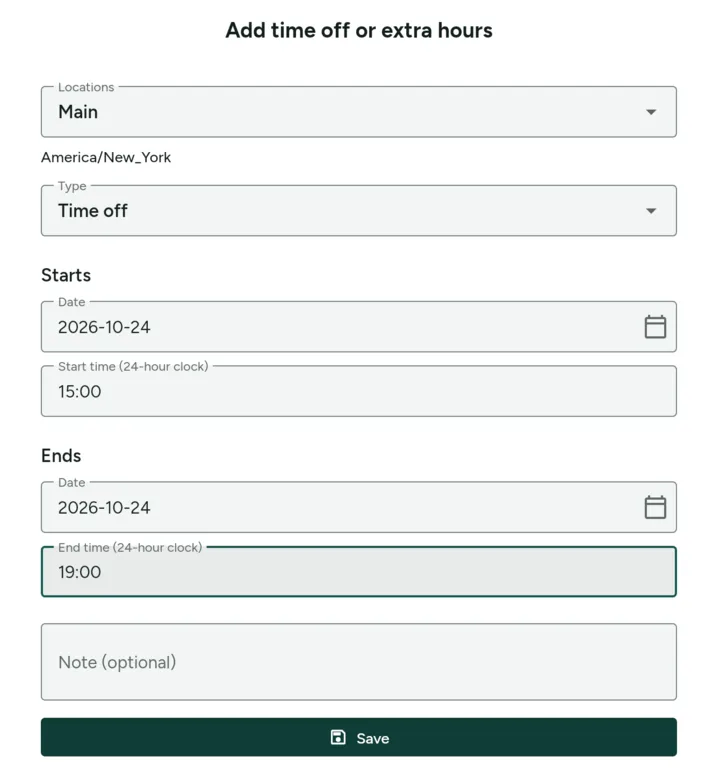
In Team, tap the calendar icon with an X next to your name (Time off & extra hours), then Add time off or extra hours. Leave Type on Time off. Under Starts, pick the day and the time you stop seeing clients (for example, Saturday, 15:00). Under Ends, the same day and the time you usually close. Tap Save. From then on your booking page stops offering times in that window, and every other day stays the same. Appointments already booked after that time stay on the calendar: reschedule or cancel each one. If the whole business closes early, turn on Whole team before you save: one time off covers everyone at that location. To undo it, open the same screen and tap the trash icon on that time off.
How do I book someone who just walked in?
Tap New appointment, then Walk-in, next to New client. It picks one shared Walk-in card for your business, so you choose the service and the professional right away, without typing a name, phone or email. The Walk-in card has no contact, so no reminder, campaign or review request goes to it. If the person wants to come back, tap New client instead and add their phone or email, so the next reminder reaches them. Walk-in shows for the owner and managers; a professional who only sees their own clients does not get it.
How do I sell a product to someone with no appointment?
Open Settings, then Products, and tap Sell (the register icon) next to the product. Pick the Quantity, the location if you have more than one, and how they paid: Cash, a transfer or another method. The Total already has the product's sales tax. Tap Sell: the stock leaves that location's shelf and the sale counts in the products report, the same as a product sold at checkout. If the person is in the chair for a service, add the product at that visit's checkout instead, so it goes on the same receipt.
Why does a product show Low, and how do I restock it?
In Settings > Products, Low means the quantity at at least one stocked location is at or below the product’s alert threshold. The total shown in the list adds all locations, so open the product to see which location needs stock. Use Low stock to filter the list. Open the product, set Low stock alert at and tap Save. For example, a threshold of 3 marks 3 units or fewer as low; 0 still flags an empty shelf. When a delivery arrives, choose Receive under the correct location, enter the number of units received in Quantity, then tap Save. This adds those units to the existing stock.
The app asks me to accept a Data Processing Agreement. What is it, and what if I wait?
If your business is in the EEA, the UK, Switzerland or Brazil, privacy law asks for a written agreement on how Belcome handles your clients’ information for you. Only the owner can accept it. The app shows a notice with the button Read and accept it now, and the same notice sits on the first setup step if you stopped there. Tap it, read the Data Processing Agreement (the sub-processors list is one tap away, and in Brazil the ANPD clauses too), tick the box that starts with I accept the Data Processing Agreement on behalf of, followed by your business name, and tap Accept. Until you do, your team can keep working, but changes are paused and the app says Accept the Data Processing Agreement to keep making changes. Businesses in the US and most other countries are not asked.
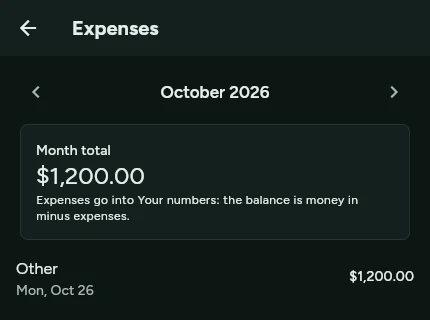
How do I log expenses and see the month's balance?
In Settings, tap Expenses and then Add expense. Enter the Amount, pick the Category (Rent, Products and supplies, Water, power and internet, Team, Marketing, Fees and card machine, Taxes or Other), check the date (it starts on today; tap it to pick another day) and, if you like, add a Note. Tap Save. The list shows the month's expenses with the Month total at the top; the arrows beside the month move to other months, and tapping an expense opens it to edit or delete. The balance lives in Settings > Your numbers: Money in, Expenses and Balance (money in minus expenses), for This week, This month or Last month.
How do I close the calendar for several days, like a year-end break?
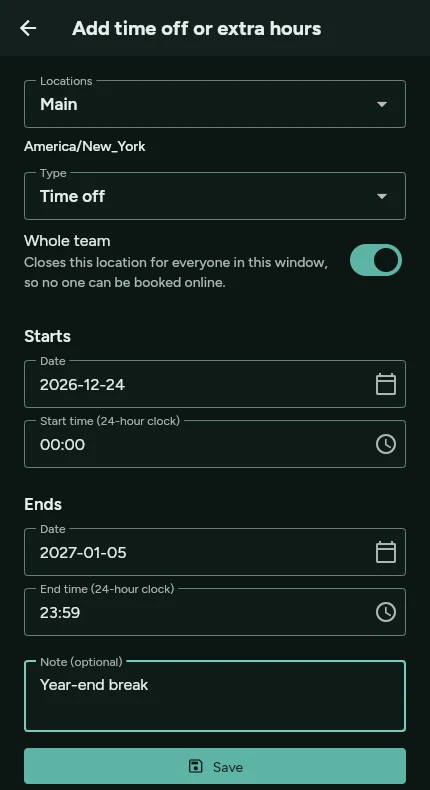
In Team, tap the calendar icon with an X next to your name (Time off & extra hours), then Add time off or extra hours. Leave Type on Time off and turn on Whole team to close the whole location. Under Starts, pick the first day and the time 00:00 (for example, 2026-12-24); under Ends, the last day and the time 23:59 (for example, 2027-01-05). If you like, add a Note, such as Year-end break. Tap Save. Your booking page stops offering times across the whole span. Appointments that were already booked on those days stay on the calendar: reschedule or cancel each one. To reopen early, open the same screen and tap the trash can on the time off.
How do I prepare payroll and record what I paid my team?
In Settings, open Payroll and choose the period. Review the commission and tips, then tap Prepare payroll. Tap a person to add a bonus or deduction; use Add someone for a team member with no commission. Pay your team using your usual method first. Then tap Record payment and choose how you paid. Belcome does not transfer money or withhold or file taxes. Review the amounts before recording: a paid payroll cannot be edited. Return to Payroll and select the same period to see the payment method and date. Team members see only their own recorded payments.
How do tips work?
In Settings, open Payments and deposits and fill in Tip suggestions at checkout with up to five percents, like 18, 20, 25. At checkout the app offers them on the total after the discount, and you can type another amount under Tip. When you send a payment link, the client sees Add a tip? with the same percents and No tip before entering the card. Tips are only suggested for services whose category has Suggest a tip at checkout turned on: open Services and edit the category. It starts off for medical services, where the desk can still enter a tip the client asks to leave. By default each tip goes to Payroll for the professional who did the visit; turn off Tips go to the professional in their commission to keep it with the business.
Can confirmations and reminders go out from my own WhatsApp number?
Yes, for businesses in Brazil. In Settings, open WhatsApp & messages, find WhatsApp from your own number and tap Connect WhatsApp. On the business phone, open WhatsApp > Linked devices > Link a device and point the camera at the code. Using WhatsApp on that same phone? Tap Link with your number instead and type the code it shows. Confirmations, reminders, reschedules and cancellations then go out with your business name and photo, and clients with no email also get the thank-you with a link to book again. Clients who book online must tick the WhatsApp box, and anyone can reply PARAR to stop. If the phone disconnects, the messages go out by email and you get a push and an email asking you to connect again.
My own WhatsApp disconnected by itself. Why, and how do I fix it?
WhatsApp unlinks a linked device when someone taps it and logs out in WhatsApp > Linked devices, when WhatsApp is reinstalled or moved to another phone, or when the business phone goes 14 days without opening WhatsApp. In Settings > WhatsApp & messages the card then reads Disconnected since, with the time. Nothing is lost meanwhile: confirmations and reminders go out by email, and you get a push and an email. To bring it back, tap Connect WhatsApp and read the code with the business phone; if it expired, tap Show a new code. Reminders that had not gone out yet for upcoming visits leave from your number as soon as it reconnects. To avoid it, open WhatsApp on the business phone at least once a week and keep the Belcome device in Linked devices.
How do clients fill in and sign forms before the visit?
In Settings, open Forms and tap Add from a template. Hair salons and barbershops get Hair color consultation, spas and massage studios get Massage intake, med spas, skincare and wellness get Health history and treatment consents, and every business gets Cancellation policy and Photo release. Edit the questions, pick the Services that ask for it and choose Ask again: Every visit or Once a year. The booking confirmation then asks the client to complete the forms before the visit, from their phone, with a signature. Someone who did not can sign on your tablet with Sign forms at the front desk. The visit shows Forms pending until it is done, and the client's card keeps everything under Signed forms, with Open PDF for a copy.
Can clients confirm a visit by replying on WhatsApp?
Yes, when your own WhatsApp number is connected in Belcome. The reminder asks the client to reply YES to confirm or CHANGE to pick another time. A short answer such as "Yes, thank you" also confirms, and so does a thumbs-up, as a message or a reaction, within 12 hours of the reminder. Anything else, like a question, stays a normal chat on your phone and changes nothing. CHANGE or a no sends the client the link to reschedule or cancel under your policy.
Does Belcome send me a summary of my week?
Yes. Every Monday morning, each owner gets last week's new bookings, how many came in online, visits, new clients, no-shows and what is booked for the next 7 days, by e-mail and push. A week with no activity sends nothing. To stop it, open My account and turn off Monday recap.
How do I see the whole week, with the seven days side by side?
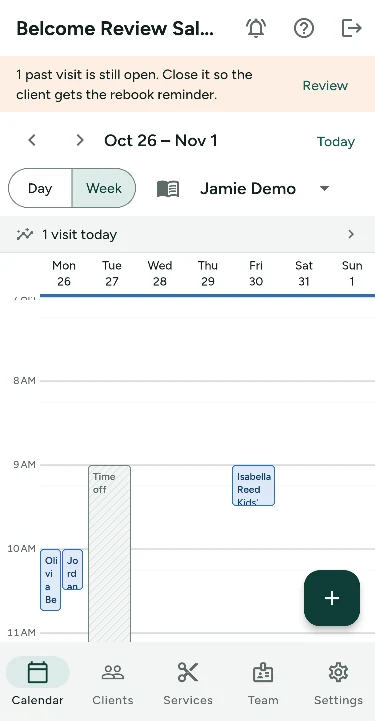
In Calendar, tap Week at the top of the screen. On a phone the week becomes a grid with the seven days side by side, one per column, and each visit shows the client's name followed by the service; the arrows next to the dates move to the previous or next week, and Today brings back the current week (Day goes back to the day's list). Week shows one professional at a time: tap the name next to the book icon to pick someone else on the team. To give each service its own color, open Services, tap the service, pick a color under Color on the calendar and tap Save; Professional's color keeps the color of whoever does the visit. The book icon, Show as a paper book, shows the same calendar styled like a paper planner; tap it again to go Back to the screen grid.
How do I show photos of my work on my booking page?
In Settings, open Booking page design, tap Add section and choose Photo gallery. Tap Add photo to upload up to 12 photos from your phone or computer, then tap Tag a service under each one. A tagged photo shows the service name, appears next to that service in your menu, and one tap opens booking with the service already picked. Tap Publish when you are done.
How do I add a photo and description for a service on the booking page?
The description lives on the service: open Services, tap the service, fill Description and tap Save. That text shows in the menu on the booking page. The service photo is not a field inside the service: in Settings, open Booking page design, tap Add section, choose Photo gallery, tap Add photo and Tag a service under the photo. A tagged photo shows the service name, appears next to it in your menu, and one tap opens booking with that service already chosen. Tap Publish when you finish. You can have a description without a photo and a photo without a description; both together is what the client sees complete on booking.
Why are my past visits still open, and how do I close them all at once?
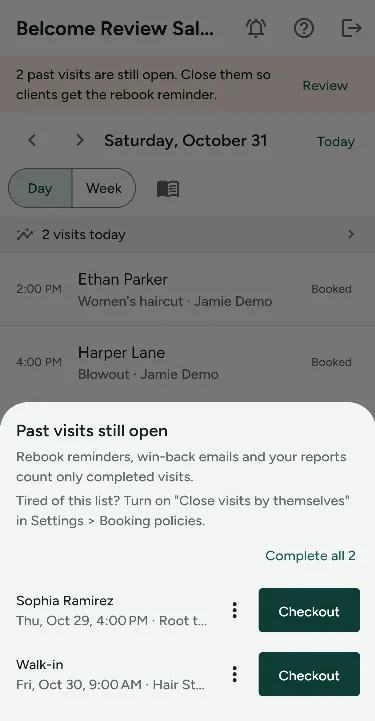
A visit only counts as completed once you close it, and rebook reminders, win-back emails and your reports only count completed visits. While a past visit is still open, the Agenda shows a strip at the top: tap Review. In Past visits still open, tap Checkout to record what the client paid. With nothing to record, tap the three dots on the row and choose Completed, no payment, or No-show for someone who did not come (No-show only appears before check-in, and a completed visit cannot go back to a no-show). To close everything at once, mark the no-shows first and tap Complete all: no payment is recorded. To skip this step, open Settings, Booking policies, turn on Close visits by themselves the next morning and tap Save: a visit left open closes on its own about 12 hours after it ends, between 9 AM and 8 PM, and visits older than two days stay on the list for you to review.
How do I keep a separate cash drawer for each stylist, studio or the retail shelf?
In Payments, tap the drawer icon at the top and add one drawer for each till, for example one per studio and one for product sales. Tick which team members work in each drawer and mark one drawer as the one that takes product sales. Every payment then lands in its stylist's drawer on its own, a quick product sale at the desk goes to the product drawer, and the chips above the payment list and the close of day show one drawer or all of them.
How do I see who paid and who didn't this month and close out the period?
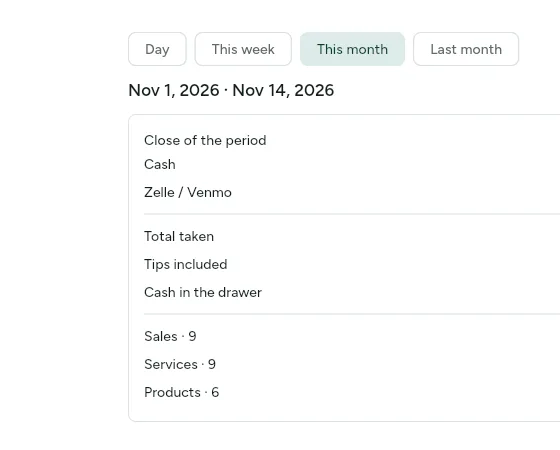
In Settings, under Money, open Payments. At the top, choose Day, This week, This month or Last month (the calendar icon changes the day). You get the Close of the period, with the total taken for each payment method, and the list of every payment with the client's name. Right below are the completed visits without payment: tap one to open Checkout and record what the client paid, and it moves to the paid list. If you use separate cash drawers, pick one drawer or All drawers in the chips below. A stylist working alone sees only their own visits.
How do I find clients who haven't come back?
In Clients, tap a filter above the list: Not back in 60 days shows who has a finished visit but nothing since and nothing booked, New clients their first visit in the last 30 days, Most loyal three or more visits this year, and Had a service lets you pick a service, so you can find everyone who had it. Tap a client to call or text. Only finished visits count, so close your past visits to keep these lists right.
Where do I keep a client's color formula?
Open the client in Clients and find Color formulas. Tap Add formula, write the color, developer, ratio and timing (for example 6N + 7G 1:1, 20 vol, 35 min) and tap Save formula. A new formula starts from the last mix, newest first. When that client is booked, the visit on the calendar shows the Last color formula, so whoever does the service starts from it.
Can clients tell me they're running late?
Yes. In Settings, open Booking policies, turn on the running late option and save. From two hours before the visit until 15 minutes after it starts, the client's appointment link shows Running late? and they pick 5 to 30 minutes. The professional and the owners get a push with how late they will be. The time and the visit stay as they are, so you decide whether to wait, shorten the service or move it.
Can an AI answer my WhatsApp while I'm closed?
In Settings, open AI front desk, keep Answer questions on your booking page on and turn on Answer WhatsApp while you're closed. It works on your own WhatsApp number, connected in WhatsApp & messages. When a client writes outside your opening hours, the AI receptionist answers once, with your booking link and a note that the reply is automatic. It answers each person at most once every 12 hours, never in group chats, and never when no opening hours are set. Everything else waits for you when you open.
Can I run my calendar from ChatGPT or Claude?
Yes. In Settings, open Integrations, then AI assistants, and copy the Address to paste. In Claude or ChatGPT, add it as a connector and sign in with your Belcome account; the screen shows each step. Then ask what is on your calendar, or have it book, reschedule, cancel or block time. It sees what your role sees and never reads client notes, forms or health records.
How does the waitlist work?
In Settings, open Waitlist, turn on Automatic waitlist and choose how long to Hold an offer for. When a time is full, clients join the list from your booking page, and you can tap Add to waitlist yourself. When a time opens, Belcome holds it for the first in line and sends a link to confirm. A line above the calendar says how many clients are waiting for the day on screen: tap it to see them, and Book opens a new visit with the client, service and professional filled in. A client you book by hand or who books online leaves the list on their own.
How do I mark treatment points and doses on a client's photo?
Open the client, go to Photos and tap a photo, then tap Mark treatment points. Tap the photo where you treated to add a point with its dose and area; tap a point to change or remove it. The totals show below the photo. Points are stored encrypted, like the chart note.
Guides and downloads
- Moving from Vagaro to Belcome
- Moving from Square Appointments to Belcome
- Moving from Fresha to Belcome
- Book through ChatGPT, Claude and other AI assistants
- The AI receptionist that answers on your booking page
- API reference for developers
- Belcome for clients on iPhone
- Delete your Belcome app account
- No-show and cancellation policy template for salons, barbershops and spas
- Hair consultation form template for beauty salons and barbershops
- Massage intake form template for spas and massage therapists
- Lash extension consent form template for lash artists
- Booth rent vs commission: calculator for salons and barbershops
Belcome Pro in the app stores
The same app your team uses in the browser is also available on Android and in the App Store for iPhone and iPad.
Try Belcome free for 14 days.
Create your account, bring your clients and services, and publish your booking page today.
Start free trial